
Understanding the Windows 11 26H2 Performance Baseline
The release of Windows 11 26H2 brings deeper modular architecture and revamped scheduler heuristics aimed directly at hybrid multicore CPUs. Despite these architectural refinements, fresh installations often launch with dozens of persistent helper services and automated diagnostic agents. These background tasks quietly occupy valuable thread bandwidth and introduce subtle micro-stuttering during sustained workstation computing or competitive gaming.
Establishing an efficient operating baseline requires systematically identifying which default components yield actual productivity value and which merely consume background electricity. Memory footprints on standard 16 GB configurations frequently exceed 5.2 GB at idle when out-of-the-box telemetry, consumer app feeds, and widget daemons run undisturbed. Calibrating these underlying subsystems turns an otherwise resource-heavy build into an ultra-responsive workstation.
Streamlining System Services and Startup Overhead
Startup impact extends far beyond third-party utilities that install themselves into user run keys. Windows 11 26H2 introduces supplementary cloud synchronizers and virtual device brokers that trigger immediately upon user sign-in. Reviewing Task Manager's Startup Apps tab remains standard procedure, yet navigating deeper into the Services Management Console unlocks significantly greater performance headroom.
Taming Copilot Runtime and Background Telemetry Hooks
The embedded Copilot runtime maintains persistent working sets in physical RAM to guarantee instant invocation across system queries. Users who rarely depend on integrated machine-learning suggestions can switch this runtime into on-demand loading via Group Policy or registry configurations. Coupled with disabling the Connected User Experiences and Telemetry service, this single calibration frees up to 1.8 GB of standby memory while reducing unwanted disk access cycles.
Optimizing Storage Sense and NVMe Throughput
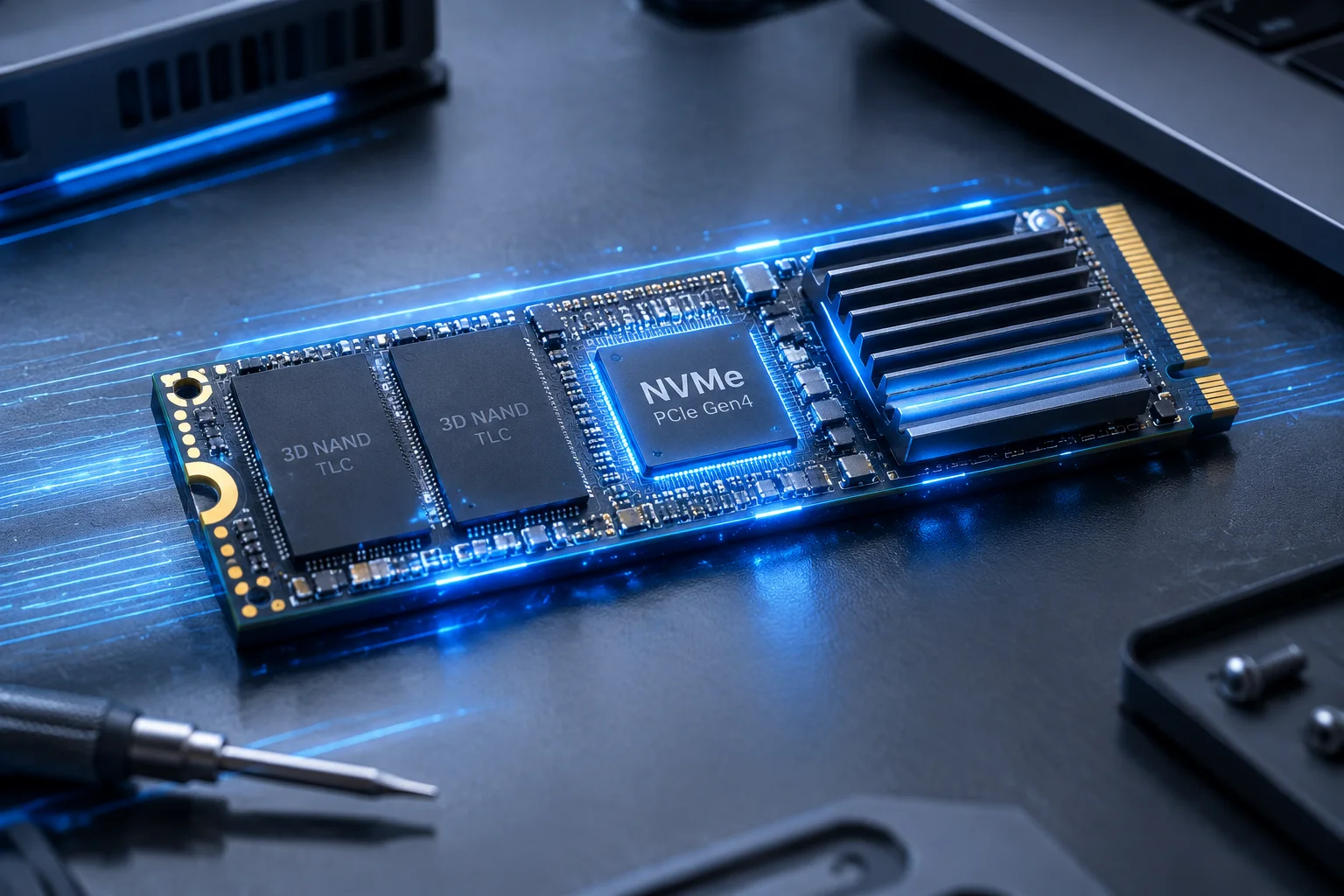
Modern NVMe drives operate best when storage controllers remain unencumbered by uncoordinated write operations. Storage Sense in 26H2 incorporates automated cleanup sweeps that occasionally conflict with high-throughput file transfers or video rendering sessions. Fine-tuning Storage Sense triggers to execute during true system idle states—or switching to customized weekly scheduled trims—prevents sudden IOPS drop-offs and substantially curtails solid-state drive write amplification.
Recommended Step-by-Step Performance Workflow
Begin your optimization by enabling the Ultimate Performance or High Performance energy plan to ensure core parking algorithms do not artificially throttle frequency scaling on desktop processors. Next, audit active background services using elevated PowerShell commands to eliminate redundant diagnostic loops. Finally, establish a regular restore point schedule to preserve a clean baseline while testing driver revisions and custom software stacks over time.